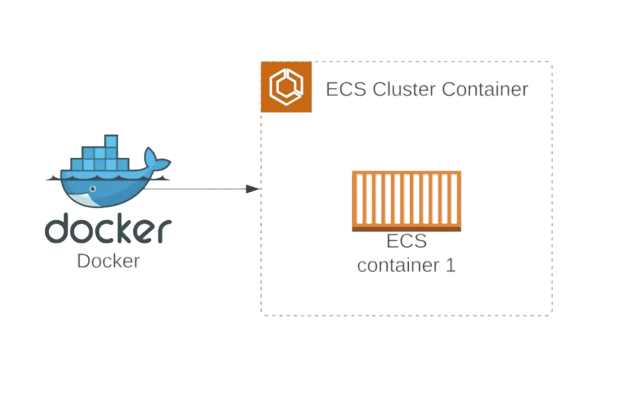
Introduction:
Moving a PHP application from local development to the cloud might sound overwhelming, but with Docker and AWS ECS, the path becomes a lot more manageable. In this guide, I’ll walk you through the first and most crucial phase: containerizing a PHP CRUD application that uses MySQL.
Project Overview:
We’ll be working with a simple PHP CRUD (Create, Read, Update, Delete) application that uses MySQL for data persistence. The goal of this phase is to get the app running inside containers using Docker and Docker Compose. In the next phase, we’ll deploy it to AWS ECS using Fargate.
Tools and Technologies Used:
- PHP (with Apache)
- MySQL
- Docker
- Docker Compose
- phpMyAdmin (optional for database GUI)
Setting Up the Application:
You can either create your own basic PHP CRUD app or clone an existing one from GitHub. In my case, I used a simple app that includes a database schema file (init.sql) for creating a users table inside a database.
Database Schema (init.sql):
CREATE DATABASE IF NOT EXISTS cruddb;
USE cruddb;

CREATE TABLE `users` (
  `id` int(11) NOT NULL AUTO_INCREMENT,
  `name` varchar(100) NOT NULL,
  `age` int(3) NOT NULL,
  `email` varchar(100) NOT NULL,
  PRIMARY KEY (`id`)
);
Ensure your dbConnection.php file uses Docker service names for database host:
$databaseHost = 'db'; // Docker service name for MySQL
$databaseName = 'cruddb';
$databaseUsername = 'cruduser';
$databasePassword = 'crudpass';

$mysqli = mysqli_connect($databaseHost, $databaseUsername, $databasePassword, $databaseName);
Writing the Dockerfile:
We’ll use the official PHP-Apache image and install the mysqli extension.
Dockerfile:
FROM php:8.1-apache
RUN docker-php-ext-install mysqli
COPY . /var/www/html/
php:8.1-apacheprovides Apache and PHP in one container.docker-php-ext-install mysqliinstalls the MySQL extension for PHP.- Code is copied into Apache’s web root directory.
Creating docker-compose.yml:
Docker Compose helps manage multi-container applications. Here’s the setup with services for the PHP app, MySQL database, and phpMyAdmin GUI.
docker-compose.yml:
version: '3.8'

services:
  web:
    build: .
    ports:
      - "8080:80"
    depends_on:
      - db

  db:
    image: mysql:5.7
    environment:
      MYSQL_ROOT_PASSWORD: rootpassword
      MYSQL_DATABASE: cruddb
      MYSQL_USER: cruduser
      MYSQL_PASSWORD: crudpass
    volumes:
      - db_data:/var/lib/mysql
      - ./init.sql:/docker-entrypoint-initdb.d/init.sql

  phpmyadmin:
    image: phpmyadmin/phpmyadmin
    ports:
      - "8081:80"
    environment:
      PMA_HOST: db
      MYSQL_ROOT_PASSWORD: rootpassword

volumes:
  db_data:
init.sqlruns automatically and creates thecruddbdatabase anduserstable.phpmyadmingives a web-based UI to inspect the database.
Running the App Locally:
Use the following command to build and start all services:
docker-compose up --build
Visit the app:
- PHP App: http://localhost:8080
- phpMyAdmin: http://localhost:8081
Login to phpMyAdmin with:
- Username:
cruduser - Password:
crudpass - Server:
db
Verifying the App:
You should now be able to:
- View the PHP app in the browser
- Add/edit/delete users
- Verify the users table inside phpMyAdmin
Now that your PHP app is containerized and working locally, the next step is to deploy it to the cloud using AWS ECS
Deploying the Containerized PHP CRUD App to AWS ECS Fargate:
As we successfully dockerized our PHP CRUD application and verified its functionality locally, the next step is to deploy it to the cloud.
What is AWS ECS Fargate?
AWS Elastic Container Service (ECS) is a fully managed container orchestration service. ECS Fargate is a compute engine for ECS that allows you to run containers without managing the underlying servers.
Step 1: Create an Amazon ECR Registry:
Before deploying our Dockerized app to ECS, we need to store our Docker images in Amazon Elastic Container Registry (ECR). ECR is a fully managed Docker container registry that allows you to store, manage, and deploy container images.
- Create an ECR repository for your PHP app:
aws ecr create-repository --repository-name php-app --region - Create an ECR repository for your MySQL image (if needed):
aws ecr create-repository --repository-name mysql --region - Log in to ECR:
aws ecr get-login-password --region| docker login --username AWS --password-stdin .dkr.ecr. .amazonaws.com
Step 2: Build and Push Docker Images to ECR:
- Build the PHP Docker image:
docker build -t php-app . - Tag the Docker image for ECR:
docker tag php-app:latest.dkr.ecr. .amazonaws.com/php-app:latest - Push the Docker image to ECR:
docker push.dkr.ecr. .amazonaws.com/php-app:latest
Redo the same process to push the MySQL image. Now that the images are pushed to the respective repositories, let's move on to the next step.
Step 3: Create an ECS Cluster:
An ECS Cluster is a logical grouping of tasks or services that you can manage together. For this project, we’ll create an ECS cluster to run our PHP and MySQL containers.
aws ecs create-cluster --cluster-name php-mysql-clusterNow the ECS cluster is created successfully and is ready to host our containers.
Step 4: Create the ECS Task Definition:
An ECS Task Definition is a JSON or YAML file that describes how your containerized applications should run.
- Create a
task-definition.json:{ "family": "php-mysql-task", "networkMode": "awsvpc", "requiresCompatibilities": ["FARGATE"], "cpu": "512", "memory": "1024", "containerDefinitions": [ { "name": "web", "image": ".dkr.ecr. .amazonaws.com/php-app:latest", "portMappings": [ { "containerPort": 80 } ], "essential": true, "environment": [ { "name": "MYSQL_HOST", "value": "localhost" }, { "name": "MYSQL_USER", "value": "cruduser" }, { "name": "MYSQL_PASSWORD", "value": "crudpass" }, { "name": "MYSQL_DATABASE", "value": "cruddb" } ] }, { "name": "db", "image": " .dkr.ecr. .amazonaws.com/mysql:latest", "portMappings": [ { "containerPort": 3306 } ], "essential": true, "environment": [ { "name": "MYSQL_ROOT_PASSWORD", "value": "rootpassword" }, { "name": "MYSQL_DATABASE", "value": "cruddb" }, { "name": "MYSQL_USER", "value": "cruduser" }, { "name": "MYSQL_PASSWORD", "value": "crudpass" } ] } ] }
This defines two containers: one for the PHP application and another for the MySQL database.
- Register the task definition:
aws ecs register-task-definition --cli-input-json file://task-definition.json
This will upload the task definition to ECS, which Fargate will use to run our containers.
Step 5: Run the Task on ECS Fargate:
This command tells ECS to launch the task based on the task definition we just created.
                aws ecs run-task \
                  --cluster php-mysql-cluster \
                  --launch-type FARGATE \
                  --network-configuration "awsvpcConfiguration={subnets=[subnet-xxxx],securityGroups=[sg-xxxx],assignPublicIp=ENABLED}" \
                  --task-definition php-mysql-task
Replace subnet-xxxx and sg-xxxx with your actual subnet ID and security group ID.
Step 6: Get the Public IP of Your Running Containers:
Once the task is running, we need to get the public IP of the PHP app container to access it from a browser.
- First, list the tasks in the cluster:
aws ecs list-tasks --cluster php-mysql-cluster - Get the task ID and describe the task to get the ENI (Elastic Network Interface) ID:
aws ecs describe-tasks --cluster php-mysql-cluster --tasks - Once you have the ENI ID, get the public IP using the following command:
aws ec2 describe-network-interfaces --network-interface-ids eni-xxxxxxxxx - Find the "Association -> PublicIp" value, which is the public IP of your task. Open this in your browser.
Step 7: Verify the Deployment:
With the public IP in hand, open the browser and go to:
http://public-ip
You should now see your PHP CRUD app running on ECS Fargate. Try the following:
- Add, edit, or delete users via the app’s interface.
Conclusion:
In this section, we successfully:
- Created an ECR registry and pushed Docker images.
- Created an ECS Cluster and Task Definition.
- Deployed a containerized PHP CRUD app with MySQL to AWS ECS Fargate.
- Verified the deployment by accessing the app in the browser and performing CRUD operations.
With ECS Fargate, we don’t need to worry about managing EC2 instances, as Fargate automatically provisions the infrastructure needed to run our containers. You can now build, scale, and manage your applications more easily and efficiently.